
Reading the dashboard
What the numbers, dials and charts on the NTS dashboard mean, and how to arrange your own view.
After you sign in you see the dashboard: a live picture of your internet line.
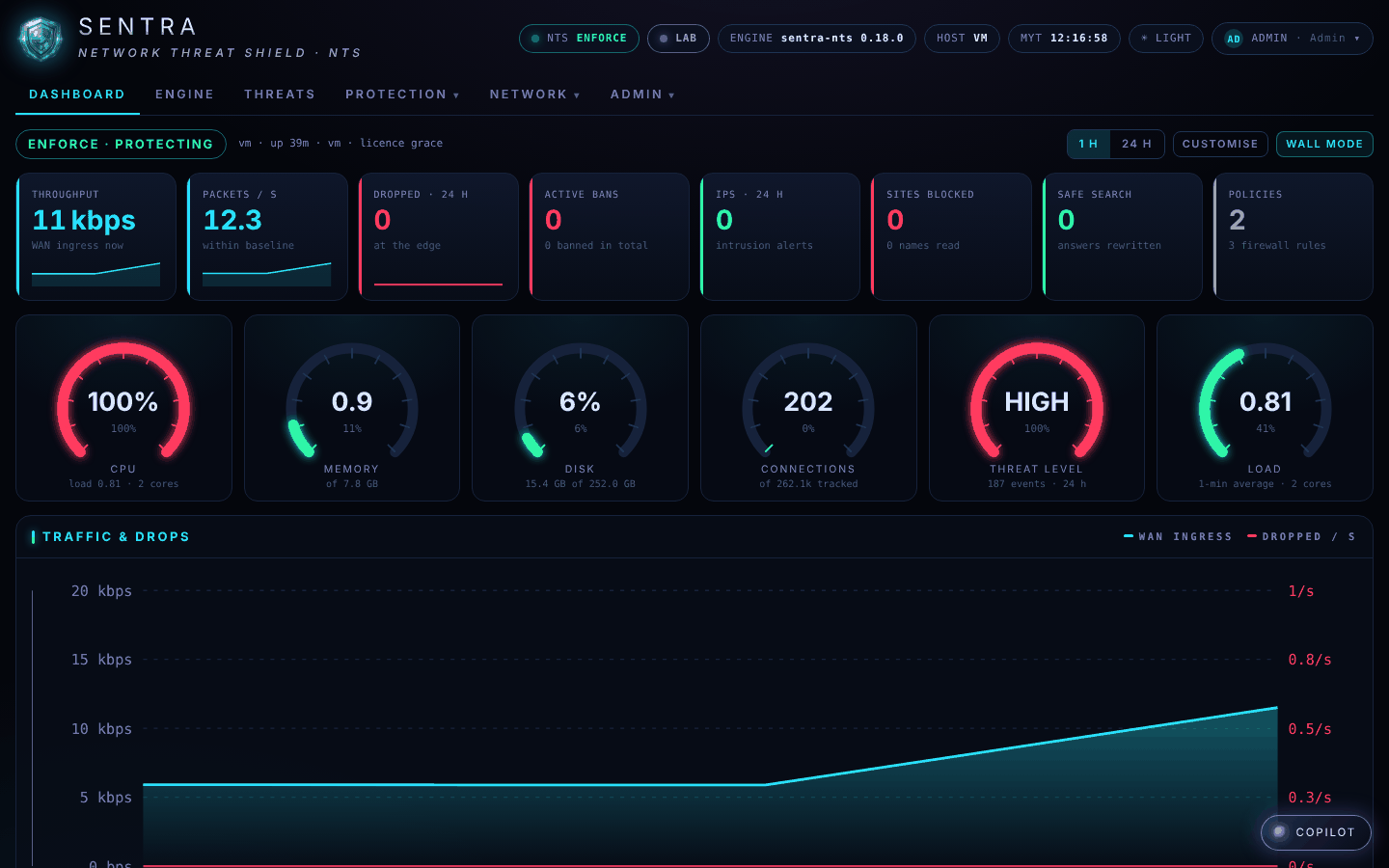
The top strip#
- ENFORCE · PROTECTING (green) — attacks are being stopped. MONITOR · WATCHING ONLY means your provider is still watching before switching protection fully on.
- A red TRAFFIC SPIKE badge appears while something unusual is flooding the line — the box is dealing with it.
- The licence state and how long the box has been running.
The headline numbers#
| Tile | Means |
|---|---|
| Throughput | How much internet traffic is arriving right now |
| Packets / s | Pieces of traffic per second — within baseline means normal |
| Dropped · 24 h | Unwanted traffic stopped at the door in the last day |
| Active bans | Attacking addresses blocked right now |
| IPS · 24 h | Break-in attempts recognised in the last day |
| Sites blocked | Websites stopped by your policies |
| Safe search | Searches made safe |
| Policies | Internet policies in use and how many firewall rules |
The dials#
CPU, memory, disk and connections show how busy the box is. Threat level is LOW, RAISED or HIGH for the last day. A high value now and then is normal; tell your provider if a dial stays red.
Charts and lists#
Further down: traffic over time, traffic on each port (click a port for a bigger graph), threat activity, the sites blocked most, and the newest events. Choose 1 h or 24 h at the top right.
Arrange your own dashboard#
Click Customise:
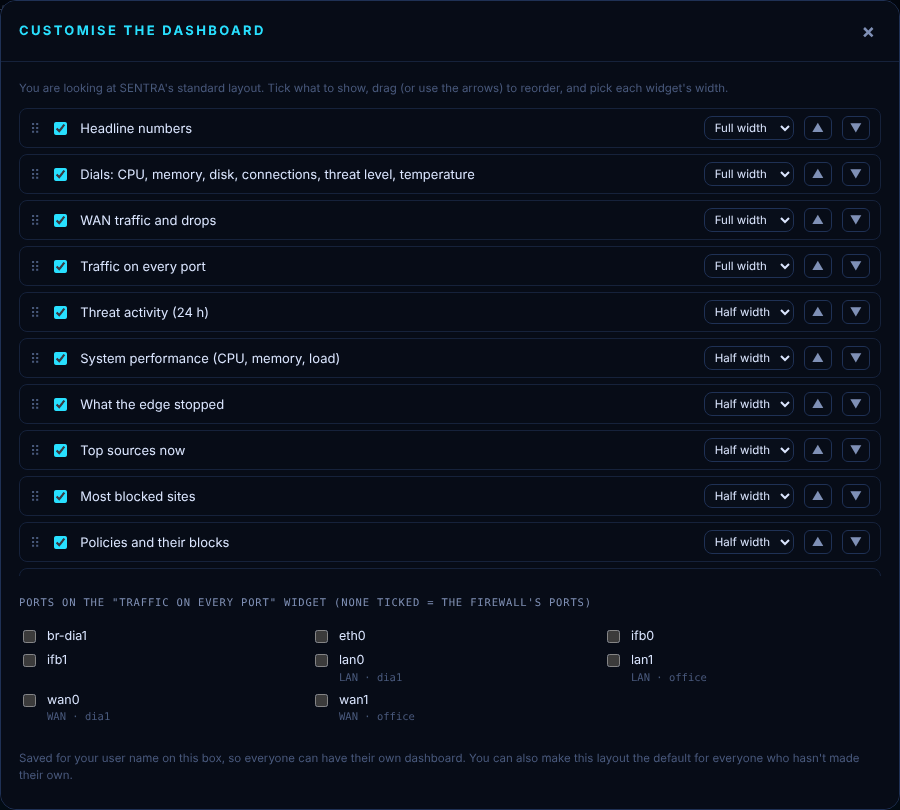
- Tick what you want to see.
- Drag to reorder (or use ▲ ▼).
- Choose half or full width.
- Save. Your layout is kept for your account, on any browser. Reset to default brings back the standard view.
On your phone#
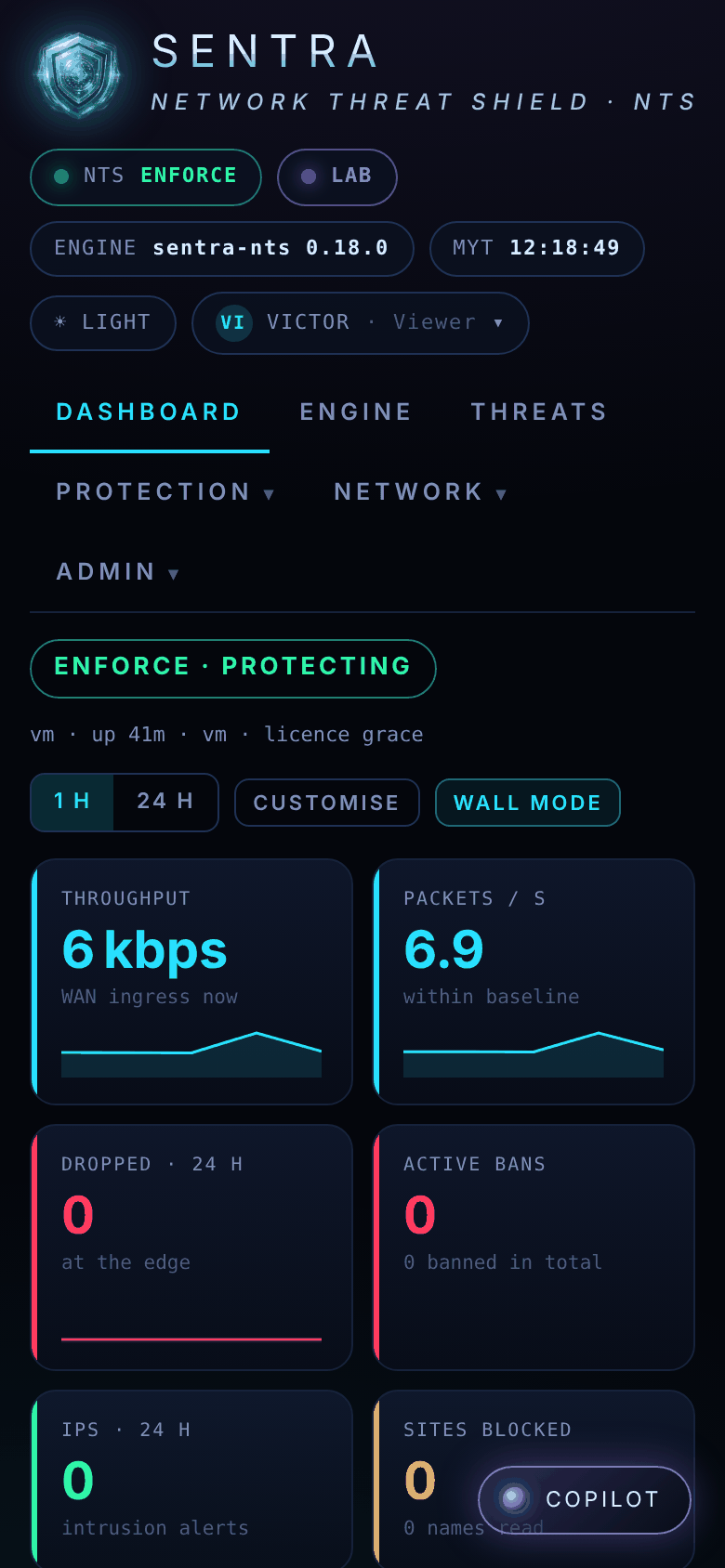
The console works on a phone too.
Wall mode#
Wall mode fills the screen with the dashboard — handy on an office TV. Press Esc to leave.