
Signing in
Opening the NTS console, signing in, setting up two-factor sign-in, changing your password and signing out.
Your provider may give you an account on the NTS console so you can see what is being protected. You need:
- the console address — it looks like
https://192.168.1.2:8443or a name your provider gives you; - your user name and password.
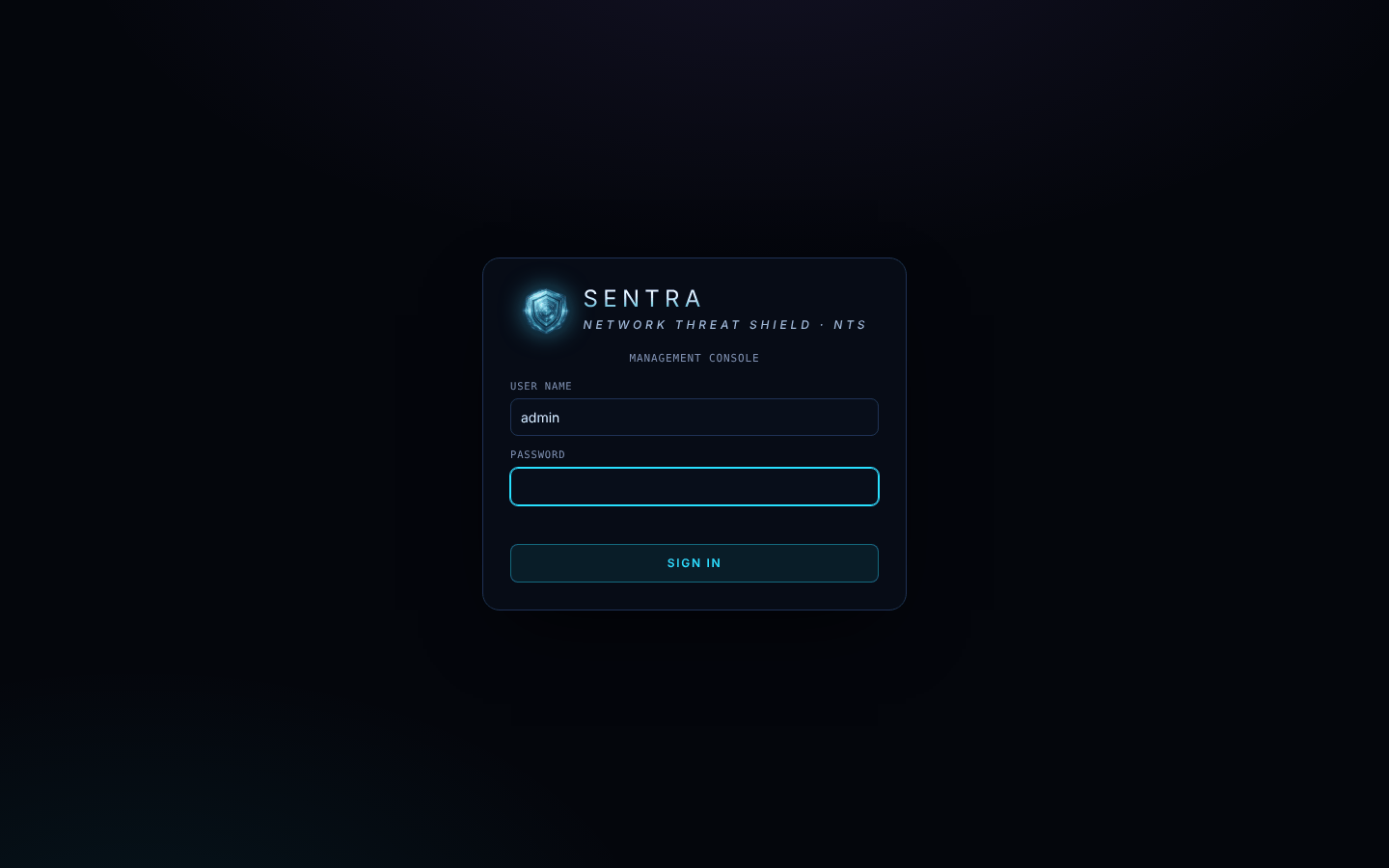
First time#
- Open the console address in your browser. If the browser warns about the certificate, check the address with your provider before continuing.
- Type your user name and password and click Sign in.
If your account comes from your provider's SENTRA GUARD, use the same name and password as there.
Two-factor sign-in (recommended)#
Two-factor sign-in means a thief needs your phone as well as your password.
- Click your name at the top right → Two-factor sign-in → Set up with an authenticator app.
- Scan the picture with an authenticator app (Google Authenticator, Microsoft Authenticator, 1Password…).
- Type your password and the 6-digit code the app shows, then Turn on.
Next time you sign in, the console asks for the code from your app.
Lost your phone? Ask your provider to reset your two-factor sign-in. They can do it in a minute.
Change your password#
Click your name → type your current password, the new one twice → Change password. (If your account comes from a SENTRA GUARD, change it there instead — the window tells you.)
"Too many attempts; wait a minute"#
After several wrong passwords the console pauses sign-in from your address for a minute (longer if it keeps happening). Wait and try again carefully, or ask your provider.
Signing out#
Click your name → Sign out. You are also signed out automatically after 12 hours.