What Internet · NTS does for your home or business, in plain language
For SME and home users and customer staff: what protection you get, signing in, reading the dashboard, why a site is blocked, reports, family and office policies, and how to ask for help.
What SENTRA Network Threat Shield does for your home or business, in plain language.
Your internet line is protected by SENTRA Network Threat Shield — Internet · NTS for short. It is a small security box (or a virtual one at your provider) that sits between the internet and your network. Everything that comes in or goes out passes through it first.
Known bad addresses, floods of junk traffic and break-in attempts are stopped before they reach your computers, phones and cameras.
Learns what's normal
Its AI learns your usual traffic. When something suddenly floods your line, it blocks the senders within seconds.
Catches break-in attempts
An intrusion-prevention engine recognises thousands of known attacks and malware.
Keeps unwanted sites away
It can block adult, gambling, scam and malware sites — and apps you choose — for everyone, or only for some devices (for example the children's tablets).
Safe search
Google, YouTube, Bing and DuckDuckGo show only safe results, with nothing to set up on each device.
Fair sharing
It can keep video calls smooth while backups and downloads wait their turn.
Reports
Daily, weekly or monthly reports of what was stopped.
It never reads your messages or web pages. It sees only the names of the sites your devices visit — like the address on an envelope, not the letter inside.
It blocks whole sites and apps, not a single video inside a site you allow. If you need to be sure only certain sites open (for young children), your provider can switch on approved sites only.
The box is built to protect without getting in the way. In the most common setup — where it sits invisibly in the line — traffic keeps flowing even if its software stops. Every change made to it is undone automatically if it causes a problem. Because all your traffic passes through it, a box that loses power or breaks does interrupt the internet until it is fixed; some business units have a bypass that avoids even that — ask your provider.
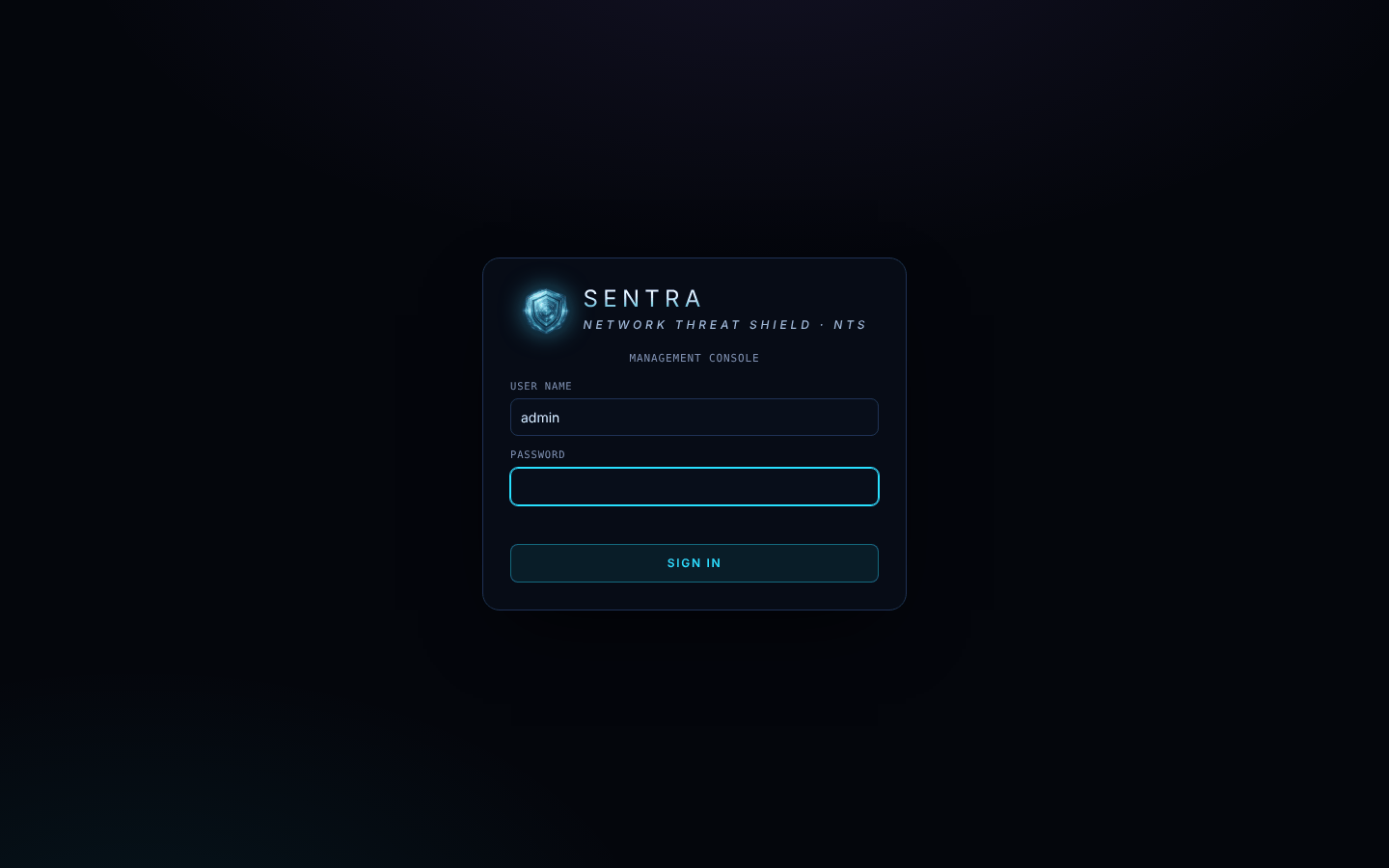
Click your name → type your current password, the new one twice → Change password. (If your account comes from a SENTRA GUARD, change it there instead — the window tells you.)
After several wrong passwords the console pauses sign-in from your address for a minute (longer if it keeps happening). Wait and try again carefully, or ask your provider.
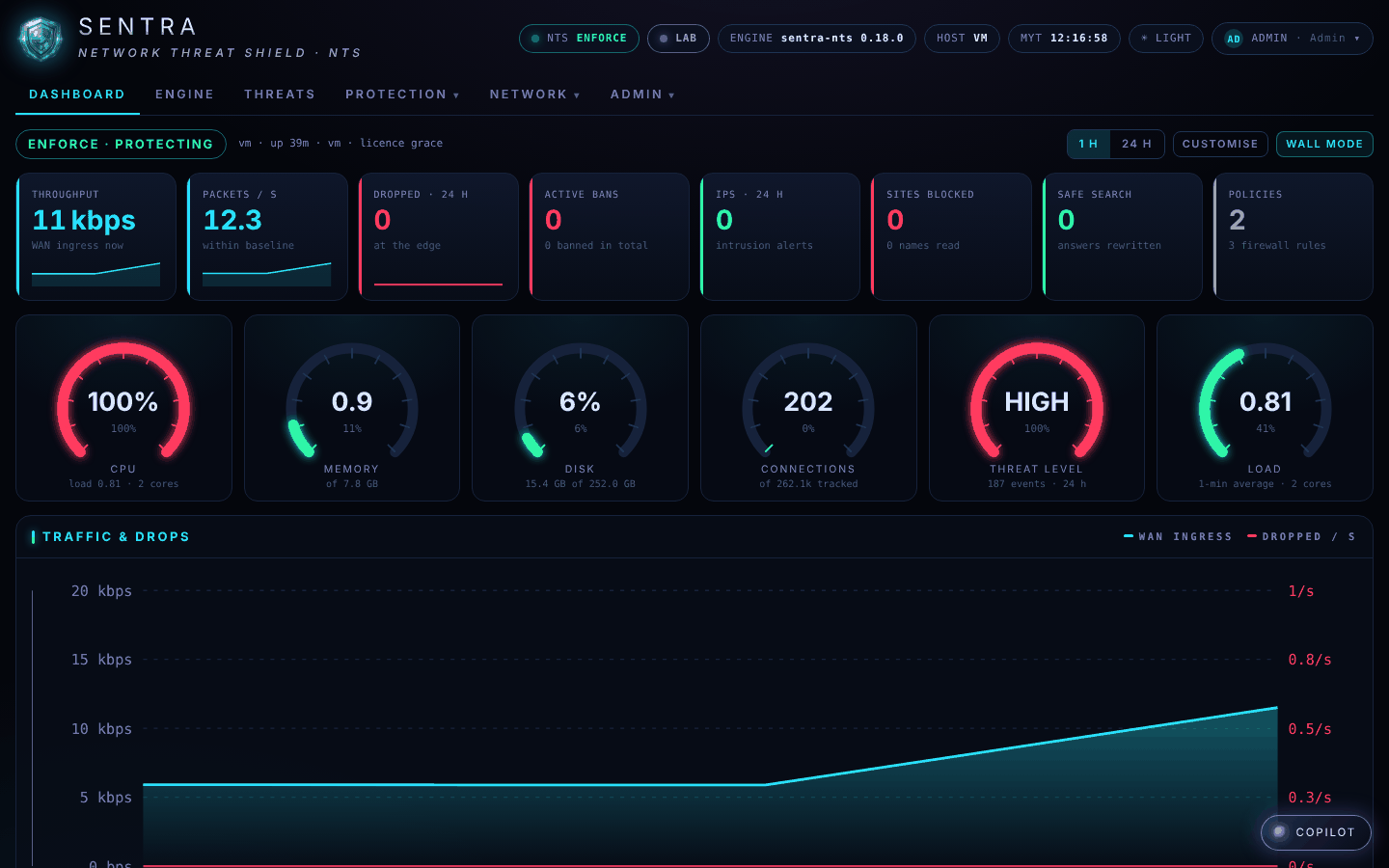
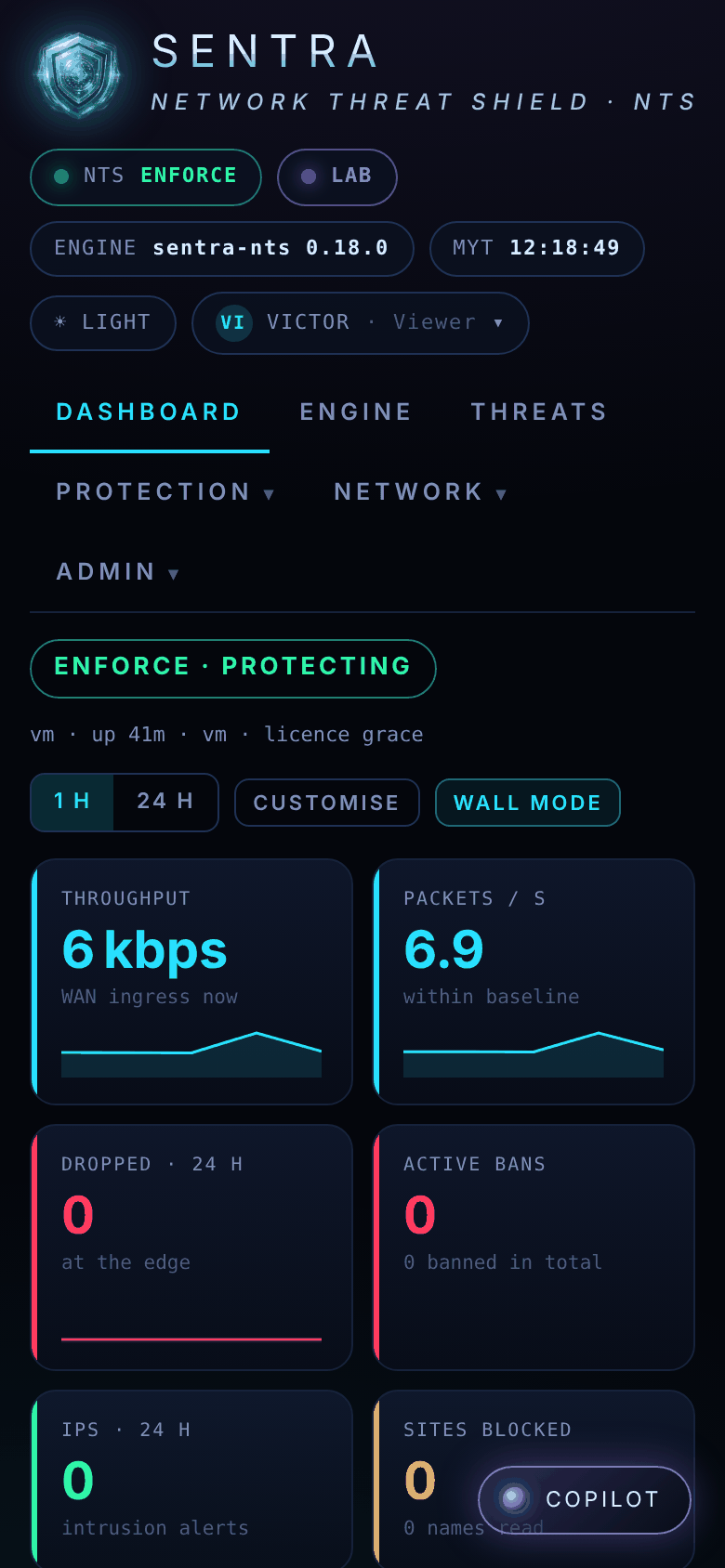
ENFORCE · PROTECTING (green) — attacks are being stopped. MONITOR · WATCHING ONLY means your provider is still watching before switching protection fully on.
A red TRAFFIC SPIKE badge appears while something unusual is flooding the line — the box is dealing with it.
The licence state and how long the box has been running.
CPU, memory, disk and connections show how busy the box is. Threat level is LOW, RAISED or HIGH for the last day. A high value now and then is normal; tell your provider if a dial stays red.
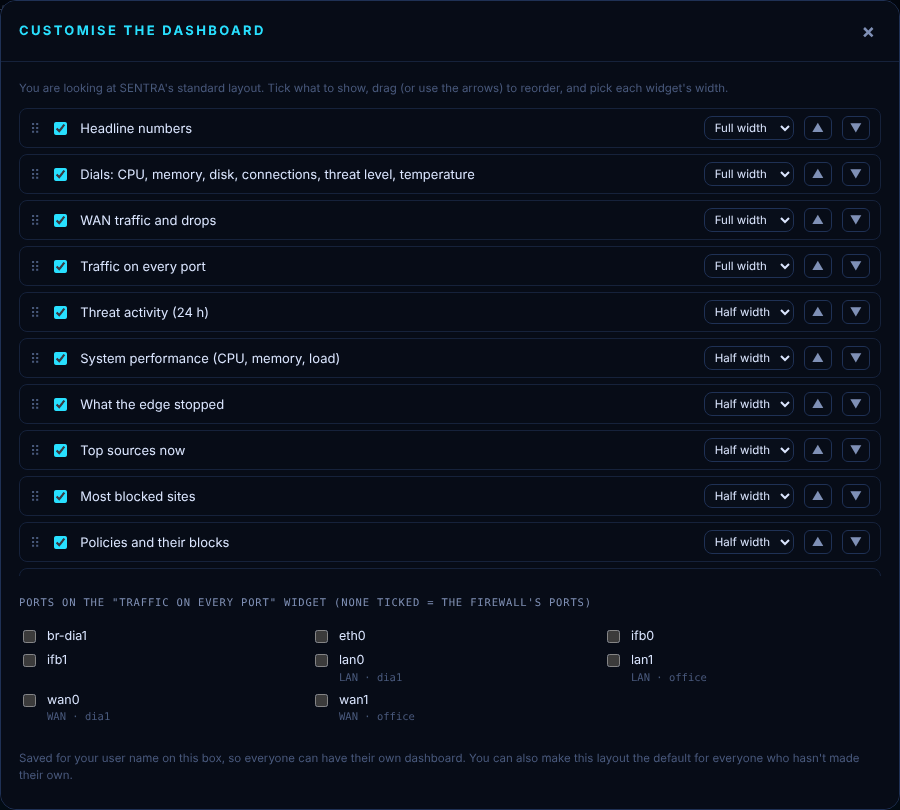
Further down: traffic over time, traffic on each port (click a port for a bigger graph), threat activity, the sites blocked most, and the newest events. Choose 1 h or 24 h at the top right.
Wall mode fills the screen with the dashboard — handy on an office TV. Press Esc to leave.
When a site is blocked
What you see when NTS blocks a site or app, why it happened, and how to ask for it to be allowed.
NTS blocks sites and apps by their name and never opens your traffic. Because of that, it can't show a "blocked" page inside an encrypted website. Instead your browser or app shows its own error.
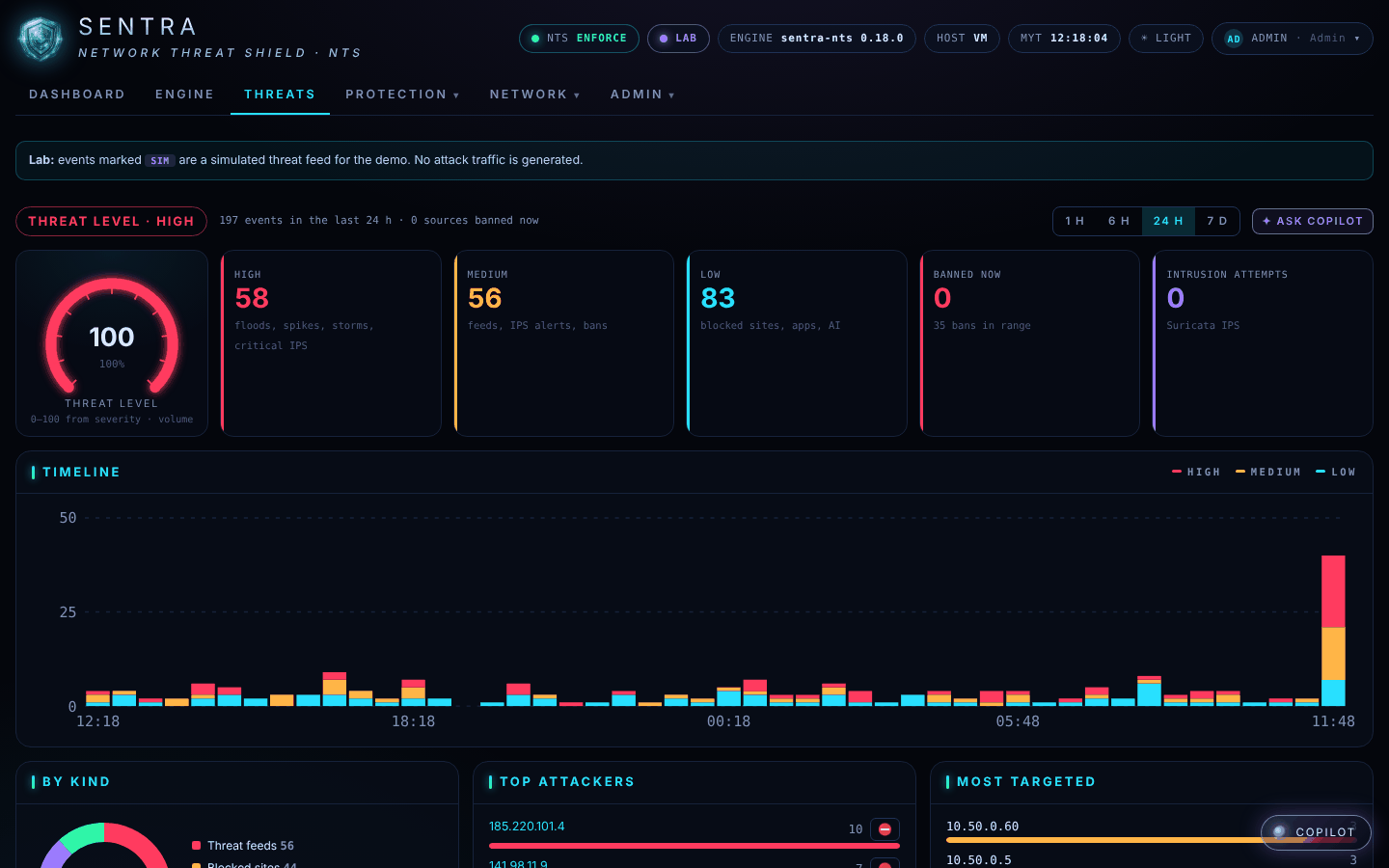
Threats (top menu) shows what NTS stopped or noticed.
The Threats page.
Threat level — LOW, RAISED or HIGH, from how many events happened and how serious they were.
High / Medium / Low — serious events (floods, traffic spikes, critical break-in attempts), medium ones (known bad addresses, break-in alerts, banned senders) and low ones (blocked sites and apps).
Timeline — when things happened. Choose 1 h, 6 h, 24 h or 7 days.
Top attackers, Countries, Blocked sites — where it came from and what was stopped.
Events — every event, newest first. Click one for the details.
Note
Seeing attacks on this page is normal and means the box is working: every internet connection is probed all day long. What matters is that they were stopped.
Events marked SIM appear only on demonstration systems; they are simulated, not real attacks.
If your provider has set up an AI model, the COPILOT button (bottom right) and Ask Copilot on the Threats page answer questions such as "Is anything attacking us right now?" in plain language, using the box's own data.
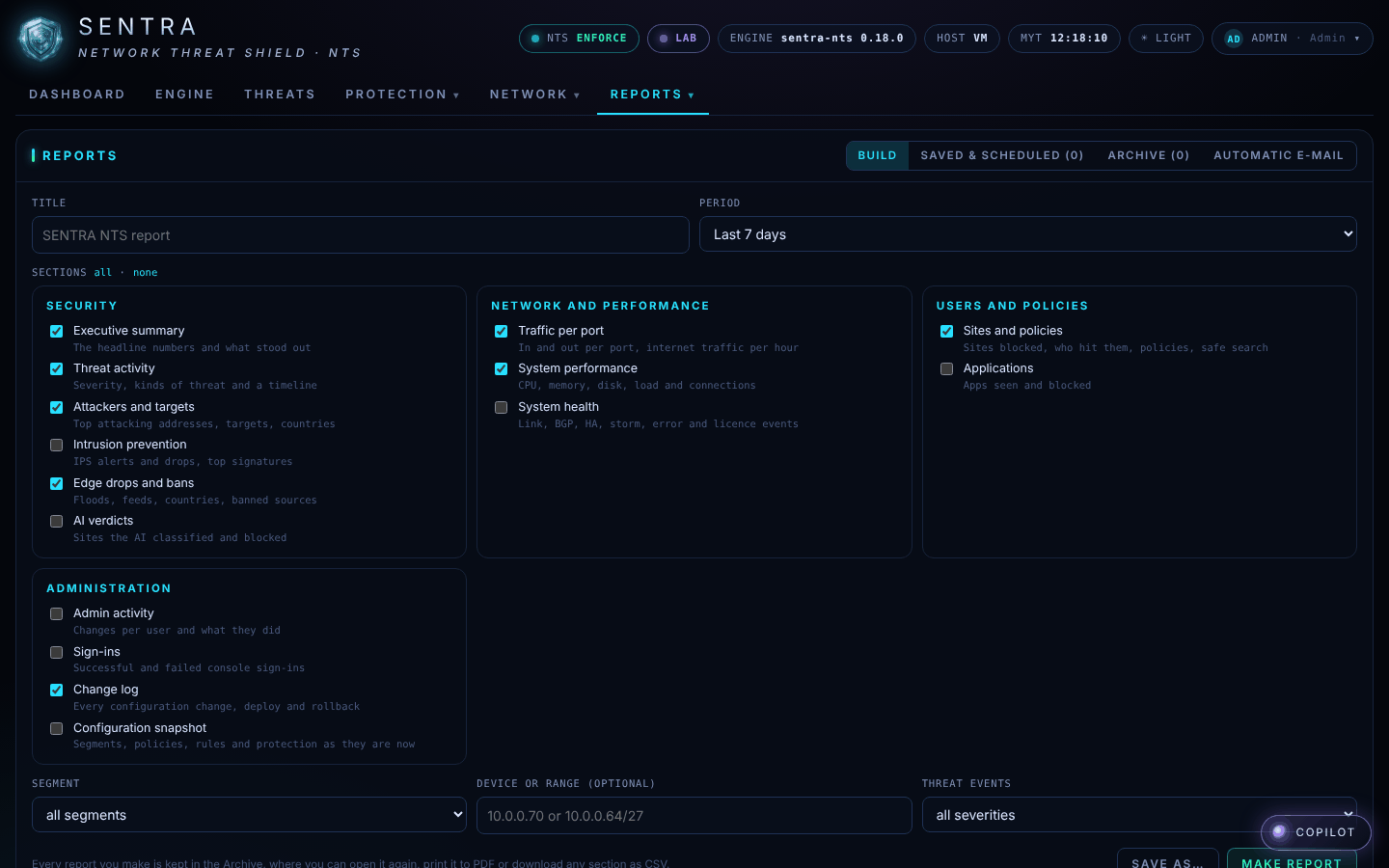
Your provider can send you reports by e-mail — daily, weekly or monthly — with an executive summary, threat activity, what was blocked, traffic and performance. If your account may run reports, open Admin → Reports, choose a period and the sections you want, and click Make report. You can print it to PDF or download the tables as a spreadsheet (CSV).
Family and office policies
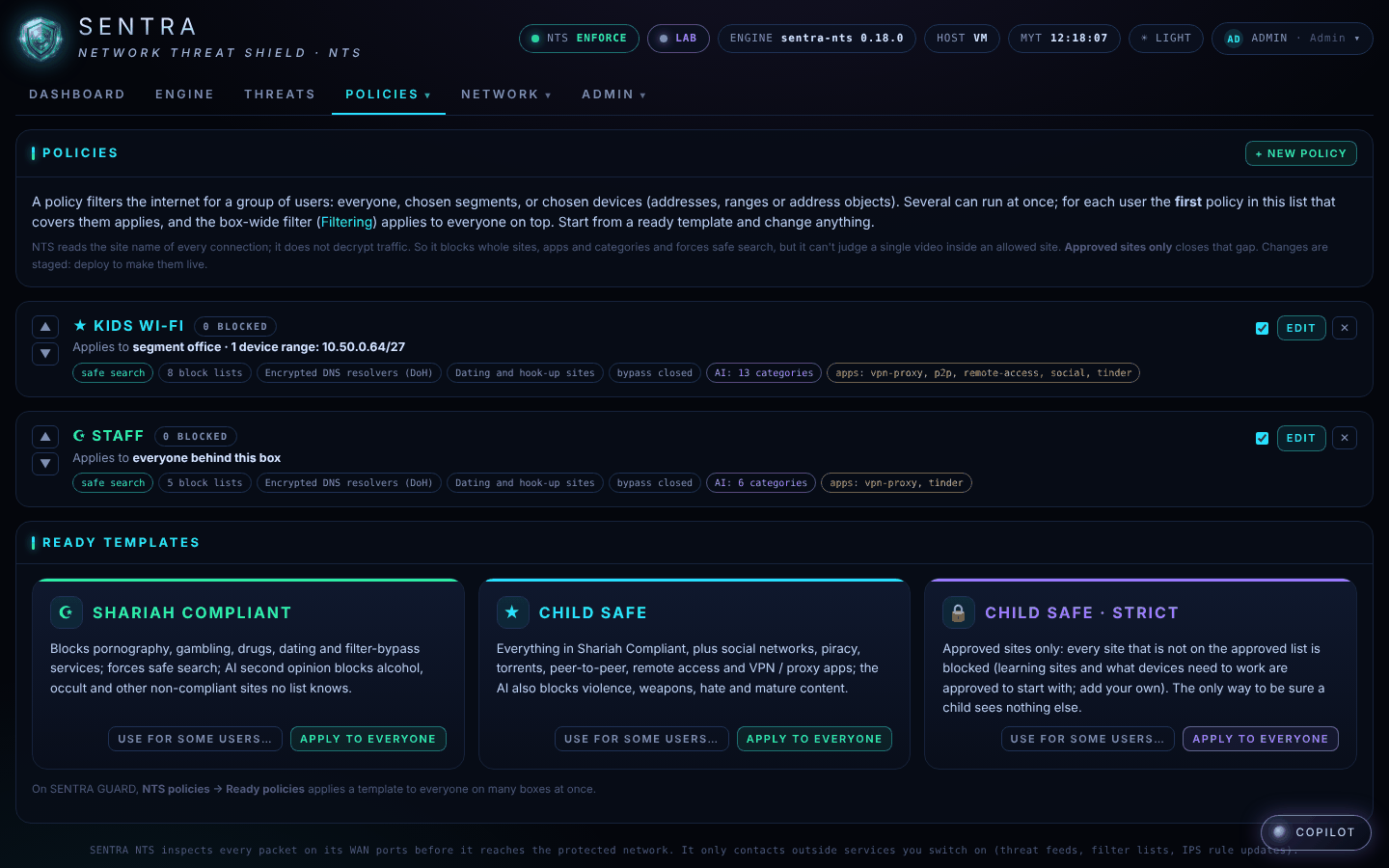
The ready-made internet policies — Shariah Compliant, Child Safe and Child Safe strict — and how they can apply to everyone or only to some devices.
A policy decides what the people behind your SENTRA box may reach on the internet. Different devices can have different policies: the children's tablets Child Safe · strict, the office PCs Shariah Compliant, guests something else.
Pornography, gambling, drugs, dating, and ways to get around the filter. Forces safe search. The AI also blocks alcohol, occult and other non-compliant sites that no list knows yet
★ Child Safe
Children and teenagers
Everything above, plus social networks, piracy, torrents, peer-to-peer, remote-access and VPN apps. The AI also blocks violence, weapons, hate and mature content
🔒 Child Safe · strict
Young children
Approved sites only: everything that isn't on the approved list is blocked. Learning sites (Wikipedia, Khan Academy, Scratch, Duolingo, Britannica, Ministry of Education…) and what devices need to work are approved to start with
Your provider can change any of these: add sites to block, approve more sites, block or allow apps.
A policy can apply to everyone behind the box, to one part of the network (for example the guest Wi-Fi), or to chosen devices. For device policies to follow the right devices, those devices should always get the same network address — your provider or IT person can set that up on the router.
Check the cables and that the SENTRA box has power (its lights are on); restart your own router. If the SENTRA box has no power, plug it back in and give it a few minutes to start
SENTRA sees the names of the sites your devices visit and the amount of traffic — never the content of messages or pages. Reports and records stay on the box and with your provider.
FAQ
Quick answers for SME and home users of SENTRA NTS.
Will SENTRA slow my internet down?
Your provider chooses a box that matches your line's speed. Fair sharing can even make calls smoother when someone is downloading.
Can SENTRA read my WhatsApp messages or e-mails?
No. It sees only the names of the sites and services your devices connect to.
Why do I sometimes see "connection reset" instead of a block page?
Because SENTRA never opens your encrypted traffic, it can only refuse the connection. See When a site is blocked.
Does safe search work on every device?
Yes, for Google, YouTube, Bing and DuckDuckGo — nothing to set up on the device.
My child uses mobile data, not our Wi-Fi. Is that protected?
No. SENTRA protects traffic that goes through your internet line. Mobile data goes through the phone company.
What if the box breaks?
In the usual setup it lets traffic through if its software stops. If the box itself loses power or fails, your internet stops until it is fixed or bypassed — tell your provider straight away.
Can I see what was blocked?
Yes — on the dashboard and the Threats page, and in reports.
Who can change the rules?
Only accounts your provider allows. Every change is recorded with who made it.
Quick quiz
Five questions to check you know how SENTRA NTS protects you.
Check what you learned in this guide.
Quiz Check your understanding 5 questions
What does SENTRA NTS look at to block a website?
NTS reads only the names of sites and services; it never opens your traffic.
You see 'Connection reset' on a site. What is the most likely reason?
NTS refuses the secure connection of a blocked site, so the browser shows its own error.
Which policy allows approved sites only?
Child Safe · strict blocks everything that isn't on the approved list.
A site you need is blocked by mistake. What should you do?
Your provider can see exactly why it was blocked and allow it.
The Threats page shows many attacks. Should you worry?
Every internet connection is probed all day. The page shows the box stopping them.
 SENTRADOCUMENTATION