Reading the shield's console day to day, for website owners and analysts
A plain-language guide for website owners and customer staff with read-only (Analyst-type) access — signing in, reading the Overview and Live pages, what each verdict means, looking into an event, reports, asking for changes, everyday workflows and a short quiz.
What SENTRA AI Threat Shield does for your website, what you can see with your account, and how to sign in.
Your website is protected by SENTRA AI Threat Shield (shown as Web App · ATS). It sits in front of the website and
checks every visit before it reaches your web server. Ordinary visitors pass straight through; attacks, abusive bots and
scrapers are slowed, checked or stopped. Every decision is recorded with its reasons.
This guide is for website owners and their staff who read the shield's console: what is happening, what was stopped,
and what the reports say. Changing the protection is done by your administrator (see Asking for changes).
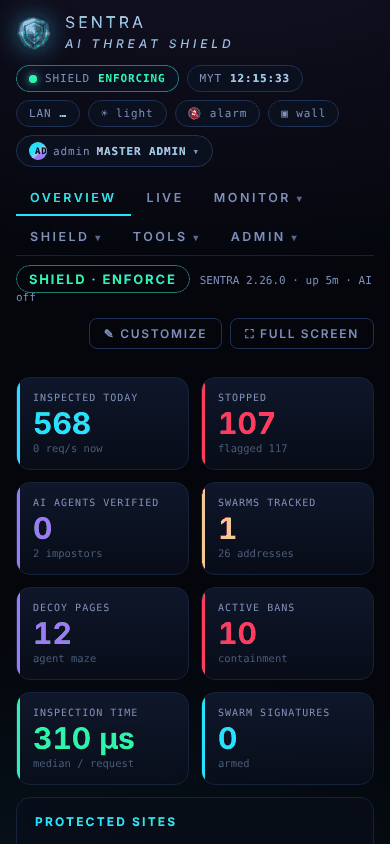
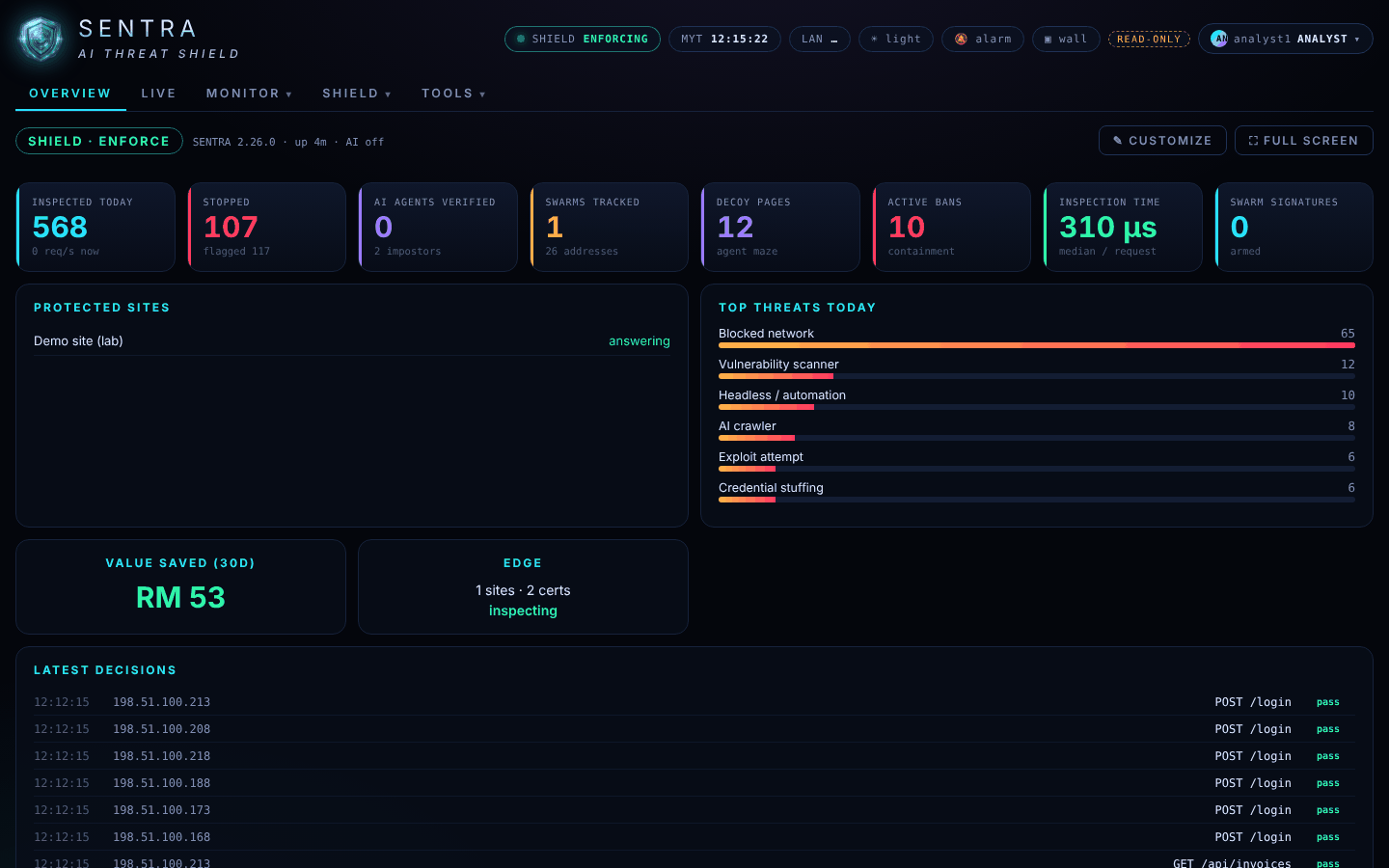
The Overview: what the shield did today, at a glance
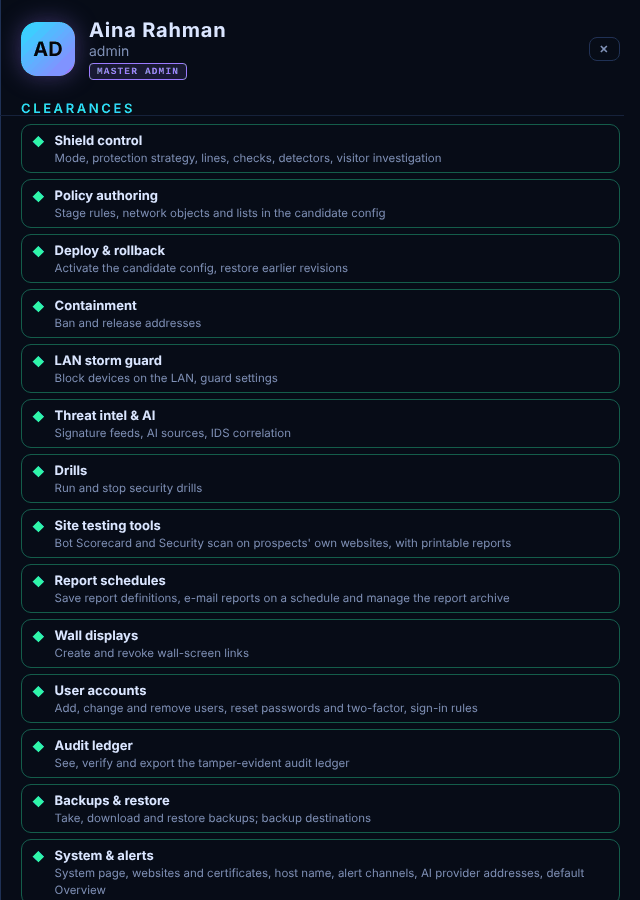
See the Overview, Live page, events, incidents, IDS views and reports
Change the protection mode, rules or settings
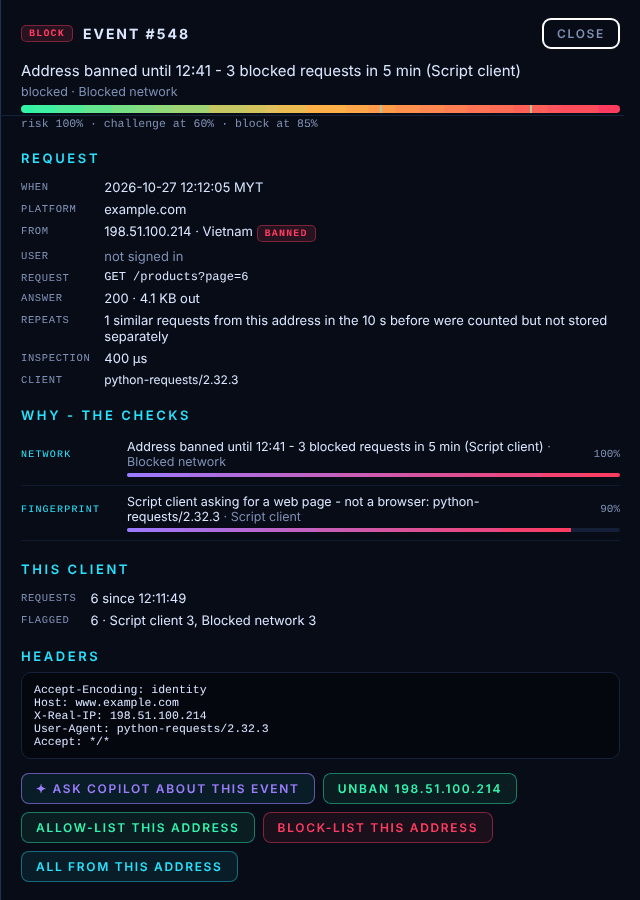
Open any decision and see why it was made
Ban or unban addresses
Build reports, print them and download CSV files
Manage users, licences or updates
Customise your own Overview
Change your own password and set up two-factor sign-in
A READ-ONLY tag in the header reminds you that your account views and reports only. Some organisations give staff
extra permissions; if a button is locked for you, your role does not include it.
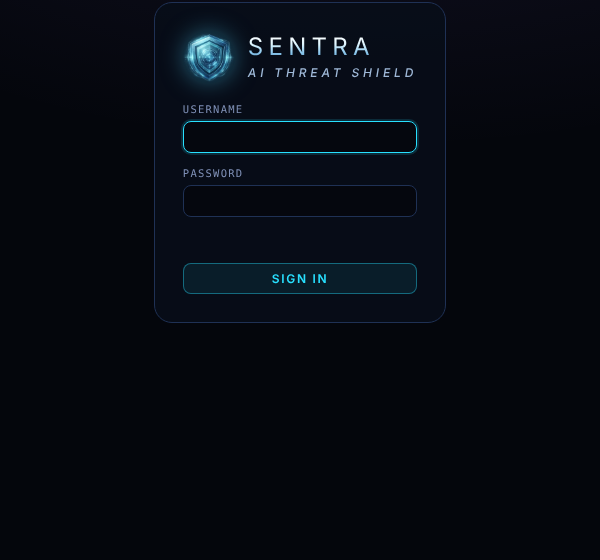
Open the console address your administrator gave you.
Enter your Username and Password, then Sign in.
If two-factor sign-in is on, enter the 6-digit code from your authenticator app.
If the page says Sign in with your GUARD account, your organisation's accounts are managed centrally: use the same
username, password and code as on your SENTRA GUARD.
Tip
After 8 wrong passwords from one place in 15 minutes, the console asks you to wait 15 minutes. If you forgot your
password or lost your phone, ask your administrator to reset it.
Click your name at the top right to change your password, set up two-factor sign-in (scan the QR code with any
authenticator app and enter the code), or Sign out. Sessions end after 12 hours.
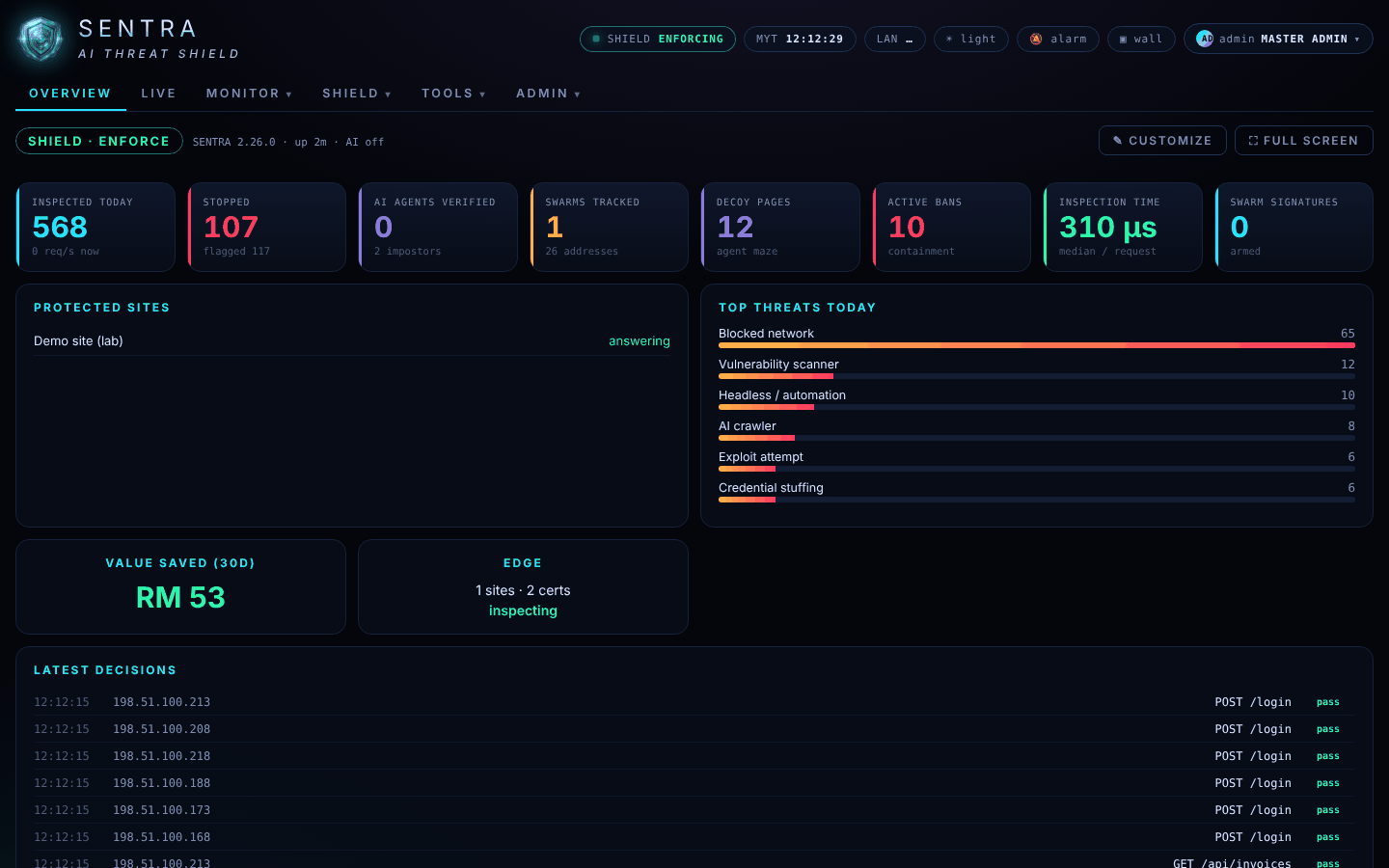
How many requests the shield checked since midnight, and how many per second right now
Stopped (or Would stop in Monitor)
Requests stopped today, and how many looked suspicious
AI agents verified
Search engines and AI assistants that proved who they are, and impostors caught pretending
Swarms tracked
Groups of many addresses acting as one attacker
Decoy pages
Fake pages served to scrapers that kept coming back
Active bans
Addresses currently refused completely
Inspection time
How long the shield takes to decide — usually far less than a millisecond
Swarm signatures
Recognised attacker toolkits being stopped on sight
Protected sites
Your websites, and whether each one's server is answering
Top threats today
The kinds of attack seen today
Value saved (30d)
An estimate of the money the shield saved in the last 30 days
Latest decisions
The newest decisions: time, address, page, and pass, check or drop
Note
A high Stopped number is not bad news: it is the shield doing its job. Worry when Protected sites shows a site
that is not answering, or when your administrator tells you about an incident.
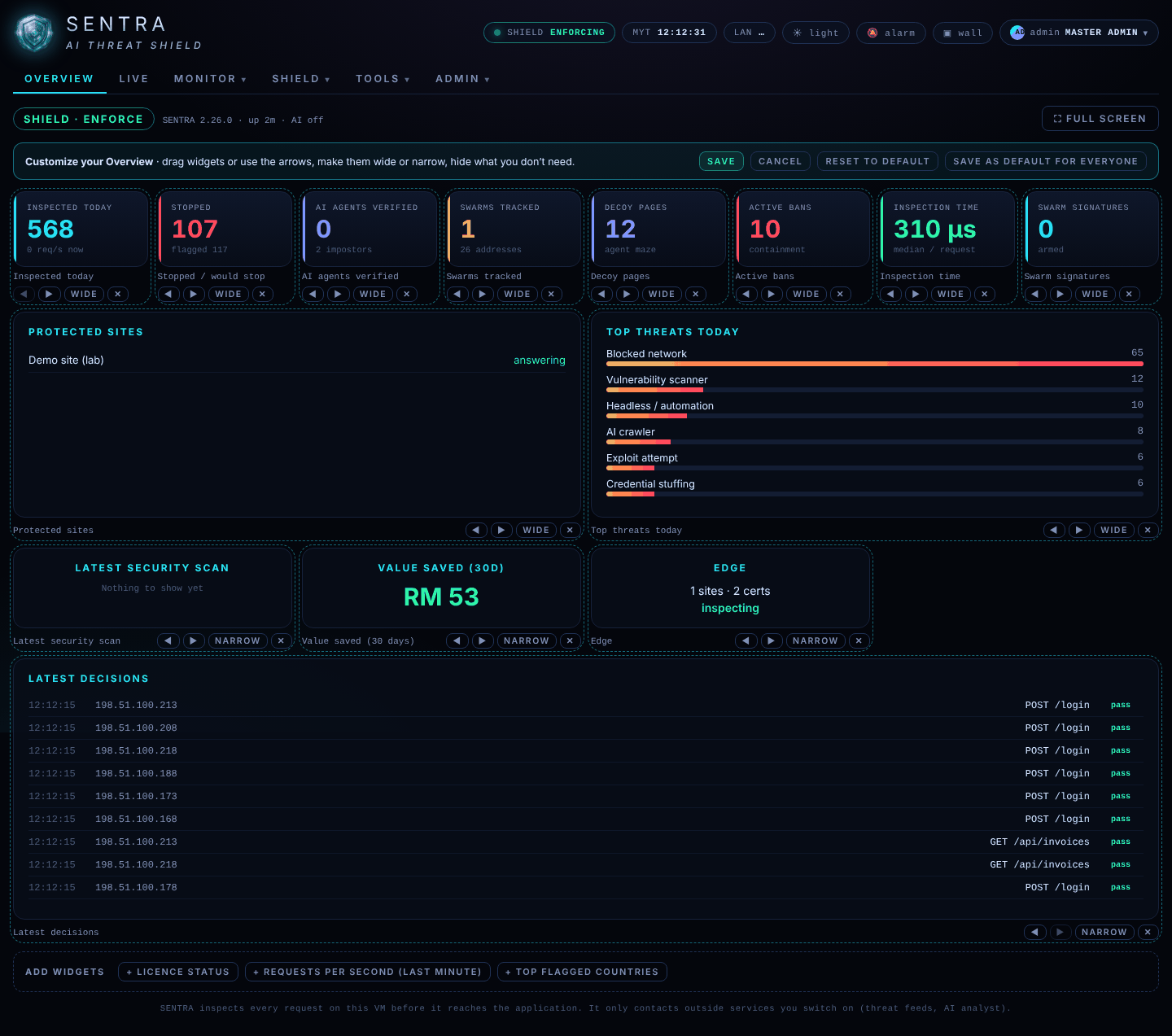
Press ✎ Customize to make the board yours: drag widgets or use the arrows to reorder them, make them Wide or
Narrow, hide them with ✕, or add hidden ones from Add widgets. Save keeps your layout for your account, on
any computer. Reset to default returns to the standard board.
Customising the Overview
⛶ Full screen shows the board alone — handy on a meeting-room screen. Press Esc to leave.
On a phone the board stacks into one column:
The Overview on a phone
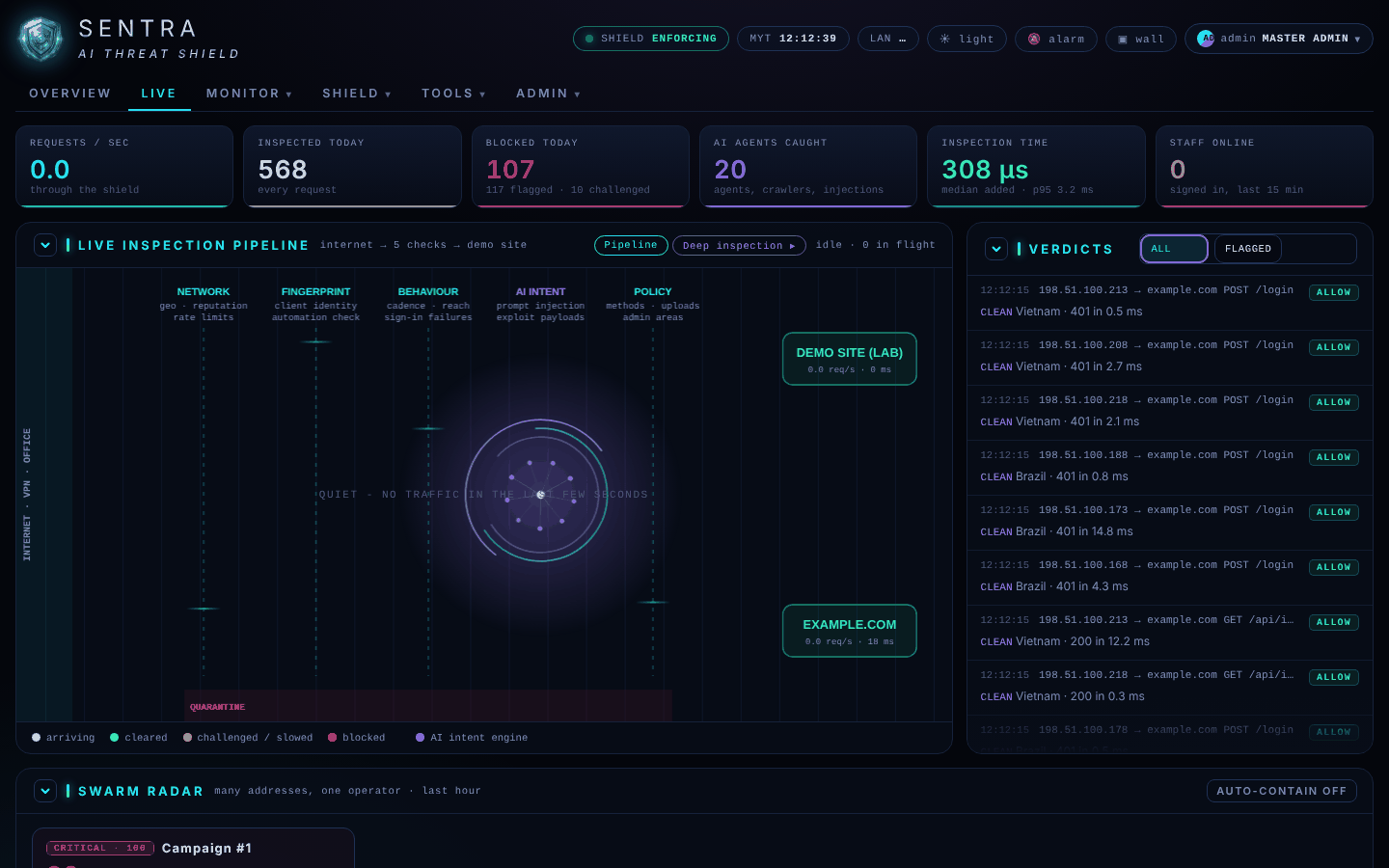
Watching Live
The Live page in plain words — the pipeline, the verdict feed, swarms, sites and where traffic comes from.
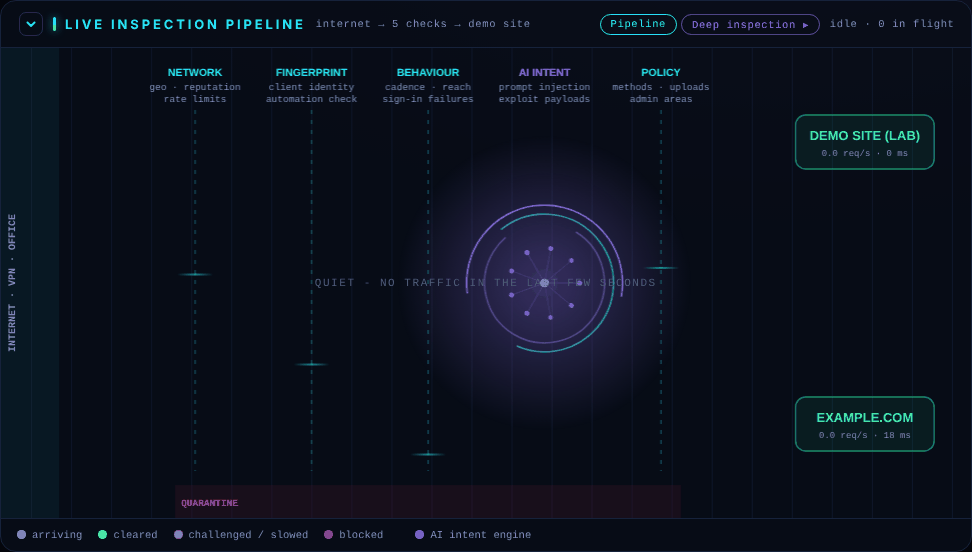
Each moving dot is a real request passing through the shield's five checks on its way to your website:
Colour
Meaning
Blue-grey
Arriving
Green
Cleared and sent to the website
Amber
Challenged or slowed down
Red
Blocked
Violet
The AI engine is looking at it
The pipeline and the verdict feed
Beside it, Verdicts lists each decision. ALL shows everything, FLAGGED only what was checked or stopped.
Lines tagged DRILL are simulated attacks your administrator ran to test the shield — they never reach your website.
Click any line to see why the decision was made (see Looking into an event).
Requests per second, inspected and blocked today, AI agents caught, inspection time, staff signed in
Swarm radar
Groups of many addresses acting as one attacker. Your administrator can contain them with one click
Site cards
For each website: requests per second, today's requests, flagged requests, response times and recent errors. NOT ANSWERING means the website's server did not respond
Threats today
Today's attacks by kind
Intent engine
How much pressure suspicious traffic puts on the shield, minute by minute
Where traffic comes from
Today's traffic by country, or by network name for your office and VPN
Who is on now
Staff signed in to your applications in the last 15 minutes
Busiest endpoints
The most requested pages today
The wall button in the header turns Live into a full-screen board for a TV; exit wall or Esc leaves it.
What the verdicts mean
Allow, challenge, investigate and block; what was done to each request; Monitor and Enforce; the risk score; the kinds of threat.
Every request gets a risk score from 0 to 100 %, made from what five checks found: where it came from, what kind
of client sent it, how it behaves, what it is trying to do, and your organisation's own rules. Two lines turn the score
into a verdict (by default 60 % and 85 %).
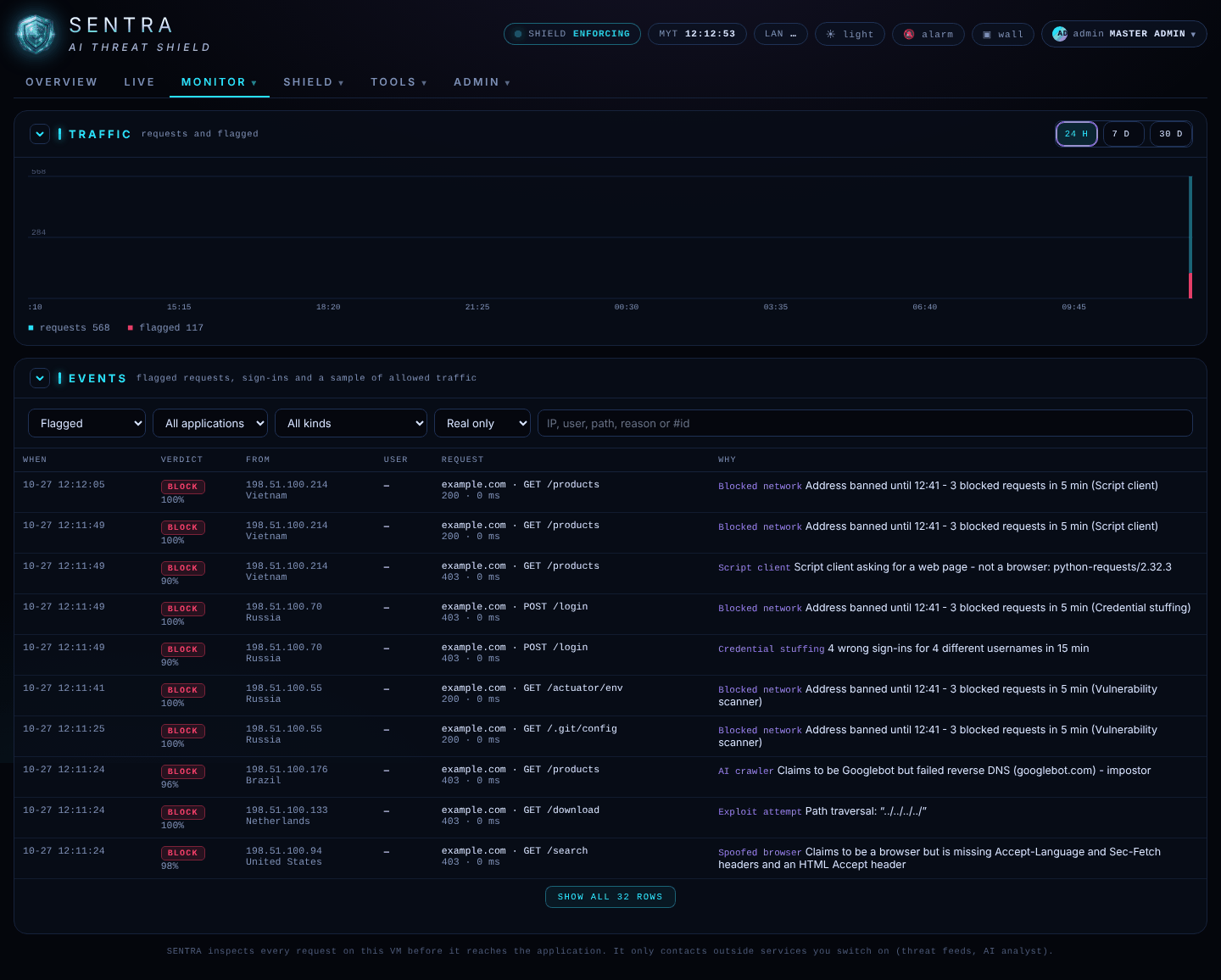
Monitor › Events lists flagged requests, sign-ins and a sample of ordinary traffic, for the last 40 days.
Monitor › Events
The chart at the top shows requests and flagged requests over 24 H or 30 D.
Filter by verdict (Block, Challenge, Allow), by website, by kind of attack, and by Real only /
Real + drills / Drills only.
Load more shows older events.
Monitor › Who lists every address seen in the last 30 minutes, riskiest first; click one to see its events.
Monitor › Incidents groups related events into cases, with a timeline and the shield's assessment.
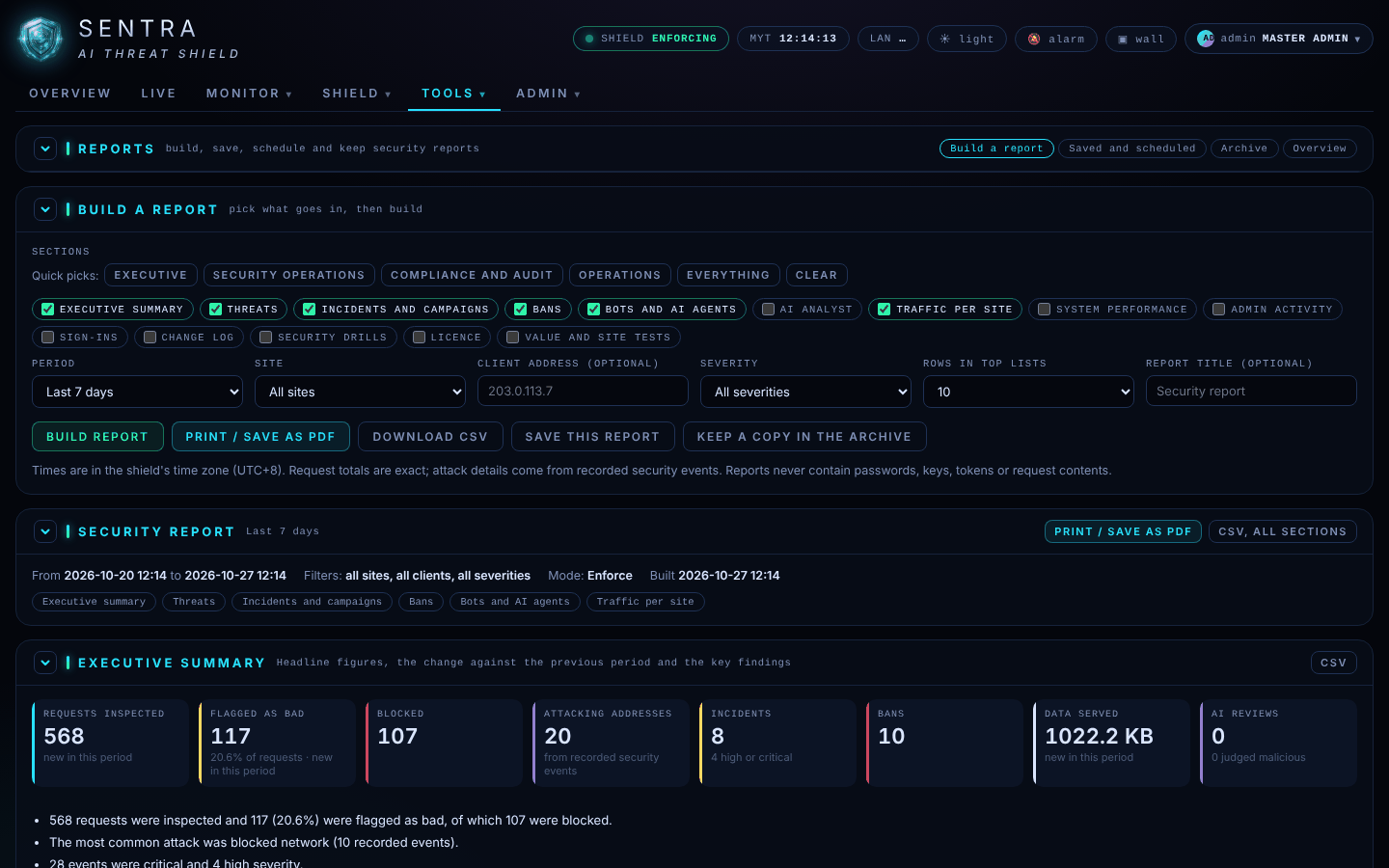
On Build a report, choose the sections — or a quick pick: Executive, Security operations, Compliance
and audit, Operations, Everything.
Choose the Period (last 24 hours, 7 days, 30 days, this month, last month or a custom range), the website, and
optionally one client address, a minimum severity and a title.
Press Build report.
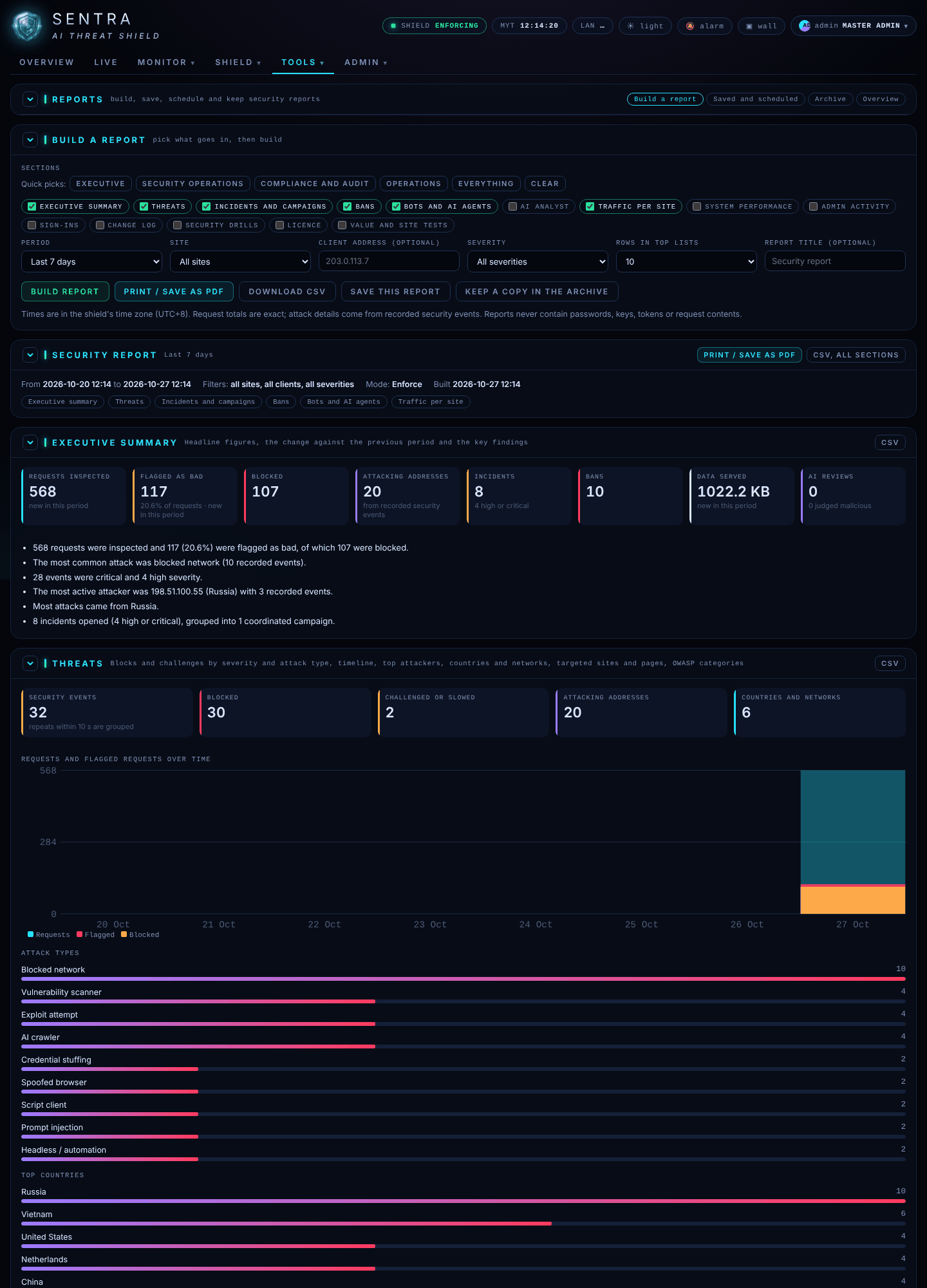
A built report
Print / Save as PDF opens a print-ready page; use your browser's Save as PDF.
Download CSV gives the data for a spreadsheet; each section also has its own CSV button.
Reports never contain passwords, keys, tokens or the content of requests. Times are in the shield's time zone.
Tip
For a monthly management meeting, use Executive with Last month. For the security team, use Security
operations with Last 7 days.
Saving reports, schedules and e-mailing them are set up by your administrator; scheduled reports land in the Archive
tab, where you can view and download them.
An estimate of what the shield saved: bandwidth and server work not wasted on bad traffic, SMS/OTP abuse prevented, and
staff time saved handling incidents. Every line shows its calculation. Open printable report gives a one-page summary
for management.
Value report
Asking for changes
What your administrator can change, what to include in a request, and what to do in an emergency.
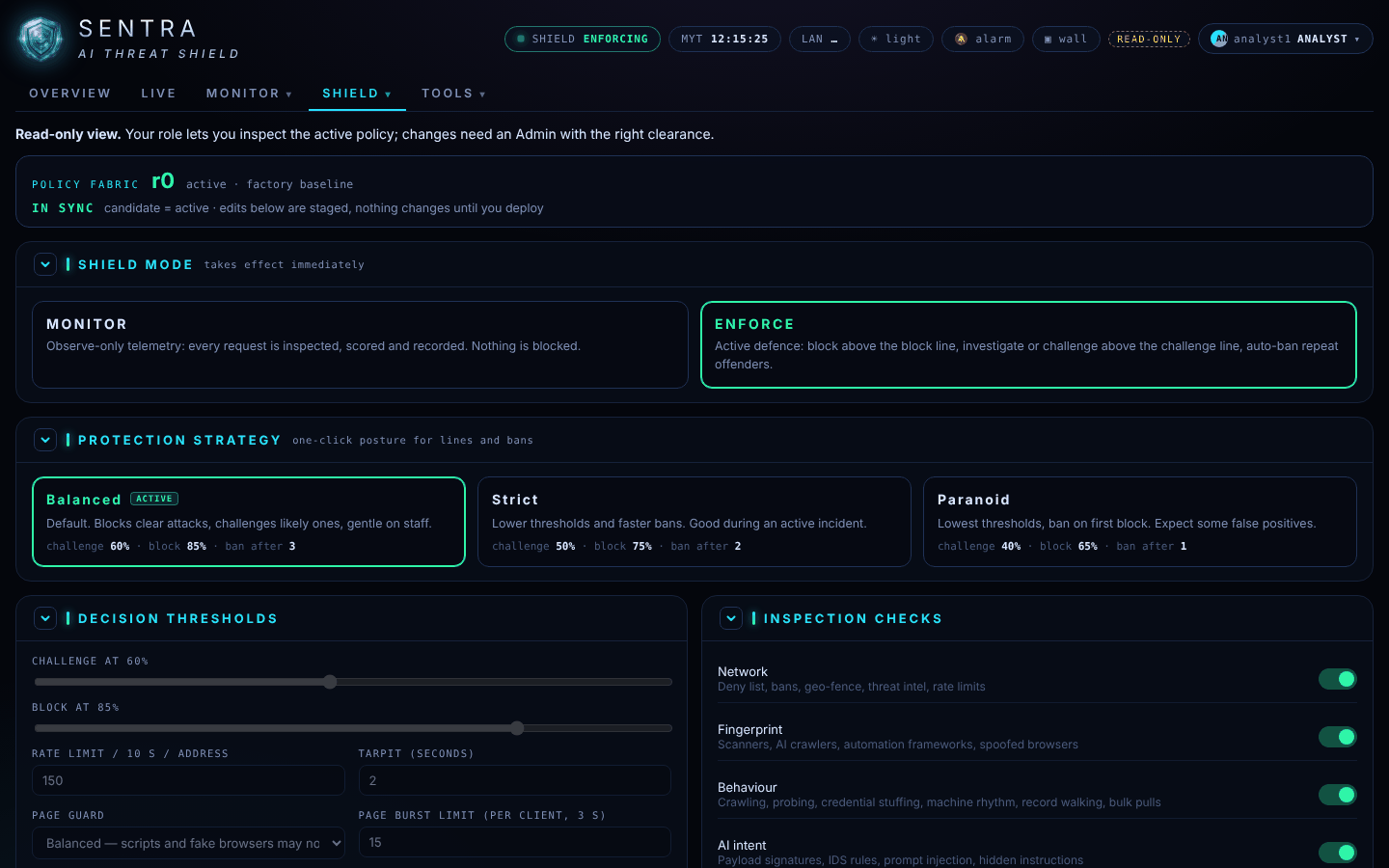
With a read-only account you see everything but change nothing. Changes to the protection go through your administrator
(your organisation's own admin, or your SENTRA service provider), so that every change is approved and recorded.
A read-only account sees the policy but cannot change it
If the website is down or under heavy attack, call your administrator or service provider straight away rather than
writing. Tell them what you see on the Overview (a site not answering, a jump in Stopped) and on Live.
Everyday workflows
A daily check, a weekly review, handling a blocked customer, and spotting an attack.
Build an Executive report for last month and attach the value report for management.
FAQ
Short answers for website owners and analysts.
Does the shield slow my website down?
No noticeable delay: it decides in well under a millisecond on average (see Inspection time on the Overview).
Will real customers be blocked?
The shield is tuned to stop attacks, not people. Browsers that look borderline get an invisible check they pass
automatically. If someone is blocked by mistake, the block page shows a reference number so it can be fixed quickly.
What are the DRILL entries?
Simulated attacks your administrator runs to prove the shield works. They never reach your website.
Why do I see Google, OpenAI or Anthropic bots?
Search engines and AI assistants read websites. The shield checks they are genuine; fakes are stopped as impostors.
Whether AI training crawlers may read your site is a policy your administrator sets.
Is my data sent to a cloud?
No. The shield runs on your organisation's own server. Reports never contain passwords or the content of requests.
Why can't I change anything?
Your account is read-only so that every change is approved and recorded. See Asking for changes.
Can I use the console on my phone?
Yes; the pages adapt to small screens.
How far back can I look?
Events are kept for 40 days; reports can cover any period within that.
Quiz
Six questions to check you can read the shield's console.
Quiz Check your understanding 6 questions
The top of the Overview says SHIELD · MONITOR. What does that mean?
Monitor mode records what would be stopped without stopping it. Enforce mode stops attacks.
An event is tagged DRILL. What is it?
Drills are safe self-tests, inspected by a separate copy of the engine and never sent to the website.
A customer says they were blocked. What do you need from them first?
The reference number and time let you find the exact event and its reason.
Which part of an event record tells you why it was stopped?
Why — the checks lists each finding, which check made it and its weight.
Where do you find everyone the shield would have stopped during Monitor mode?
Shadow review groups would-be-stopped traffic by address and reason, so legitimate visitors can be trusted before enforcing.
You need a monthly summary for management. Which quick pick fits best?
The Executive pick gives the summary, threats, incidents and value — the right level for management.
 SENTRADOCUMENTATION