SENTRADOCUMENTATION
Product specs

SENTRA NTS Appliance — Hardware Guide

Reference hardware, cabling, fail-open and first boot for Home and SME units

Reference platforms for SENTRA NTS appliances (subject to qualification), how to cable an inline unit, fail-open and bypass, power and environment, and the path from unboxing to a licensed, protecting box.

Version 0.18.027 October 2026

Contents

  1. 01The SENTRA NTS appliance
  2. 02Reference platforms
  3. 03Cabling an inline unit
  4. 04Fail-open and bypass
  5. 05Power and environment
  6. 06From unboxing to protecting
  7. 07Sizing, care and support

The SENTRA NTS appliance

What the SENTRA NTS appliance is, the Home and SME tiers, and how it relates to running NTS on a virtual machine.

The SENTRA NTS appliance is a small, fanless network computer with SENTRA Network Threat Shield (Internet · NTS) pre-installed. It sits in the internet line of a home or business and protects everything behind it: attacks are stopped at the door, unwanted sites and apps are filtered, and family or office policies apply to the right devices.

The same NTS software also runs on a virtual machine or a data-centre server for carriers and large sites. The appliance is the packaged form for homes and SMEs.

Two tiers#

Home SME
For Homes, home offices, small shops Offices, schools, clinics, branches
Typical line Fibre broadband Business fibre, Dedicated Internet Access, two lines
Network ports 4–6 × 2.5 Gb/s 2.5 Gb/s ports plus 10 Gb/s fibre (SFP+) ports
Cooling Fanless, silent Fanless
Typical setup Between the ISP modem/ONT and the home router (bridge), or as the home gateway (routed) Between the carrier and the office firewall/switch (bridge), or as the office gateway with VPN and multi-WAN (routed)
Bypass (keeps the line up if the unit fails) Software fail-open; manual bypass Software fail-open; premium SME units with a hardware bypass

The exact models are listed in Reference platforms.

What's in the box#

Ask your SENTRA provider for the exact contents of your unit.

How it is managed#

Option How
By your provider Most appliances are connected to the provider's SENTRA GUARD, which installs the licence, sends updates, backs the unit up and sets policies — nothing for you to do
Stand-alone You (or your IT company) manage it in its own web console; signed updates come from the SENTRA release server

In this guide#

  1. Reference platforms
  2. Cabling an inline unit
  3. Fail-open and bypass
  4. Power and environment
  5. From unboxing to protecting
  6. Sizing, care and support

Administrators will find the software side in the SENTRA NTS — Administrator Manual (staff sign-in).

Reference platforms

The hardware classes SENTRA NTS appliances are built on — reference platforms, subject to qualification.

Warning

Reference platforms, subject to qualification. The hardware below describes the classes of equipment SENTRA NTS appliances are being built on. Specific models, throughput figures and certifications are confirmed per model only after SENTRA has qualified and benchmarked it. Nothing on this page is a certification claim.

Baseline for every unit#

Requirement Why
Intel network controllers (i226-V 2.5 Gb/s class, Intel 10 Gb/s for SFP+) Mature, well-supported Linux drivers; stable at line rate
Fanless, low power, 12 V Runs 24/7 in a cupboard or rack, silently
Wired only (no Wi-Fi or cellular module fitted) NTS protects the line; keeping radios out simplifies certification
x86-64 CPU with AES-NI NTS, VPN and the IPS run on standard Ubuntu Server
A management port separate from the protected ports The console and SENTRA GUARD link never sit in the customer's path
Hardware watchdog (recommended) A hung unit restarts itself

Home tier#

Item Reference class
CPU Intel N150 (4 cores), fanless
Network 4–6 × 2.5 Gb/s Intel i226-V
Memory / storage Memory and an NVMe SSD fitted to SENTRA's specification
Examples of the class White-label N150 firewall mini-PCs (Topton / CWWK / Glovary class); Protectli Vault VP2430 class as a reference unit
Bypass None in hardware — see Fail-open and bypass

SME tier#

Item Reference class
CPU Intel Atom C3758R, 8 cores, fanless
Network 5 × 2.5 Gb/s (Intel I225-V/I226-V) plus 4 × 10 Gb/s SFP+
Example of the class Qotom Q20332G9 class
Bypass None in hardware

Premium SME (with hardware LAN bypass)#

For customers on a single internet line where downtime is not acceptable.

Item Reference class
Example A Axiomtek NA366 class — Intel Atom x7000C, up to 10 ports including 2 × 10 Gb/s SFP+, LAN bypass
Example B Lanner NCA-1513 class — Intel Atom C3000, 6 × 1 Gb/s with two bypass pairs
Bypass Hardware: the bypass pair connects WAN to LAN directly when the unit is off or unhealthy

Performance#

Throughput depends on which NTS features are on — the edge shield and firewall are light; the IPS, application recognition and name filtering cost more CPU. SENTRA benchmarks each qualified model with full inspection on and publishes the supported line rate and number of users per tier. Until then, size conservatively and ask SENTRA.

Cabling an inline unit

Which port goes where, bridge versus routed layouts for homes and offices, and the management connection.

Every port on a SENTRA appliance has a role, printed on its label:

Label Role Connect to
WAN Faces the internet The ISP modem / ONT, or the carrier's hand-off
LAN Faces your network Your router, firewall or switch
MGMT Management Your admin network (or the provider's management link)
other Unused, or extra segments As configured

A WAN and a LAN port together form a segment. All traffic between them passes through NTS.

Layout 1 — Bridge (invisible in the line)#

  Internet ── ISP modem/ONT ──[WAN]  SENTRA  [LAN]── your router ── your devices
                                        [MGMT]── admin PC / provider link

Layout 2 — Routed (SENTRA is the gateway)#

  Internet ── ISP modem/ONT ──[WAN]  SENTRA  [LAN]── switch / Wi-Fi access point ── your devices
Note

In routed mode the SENTRA unit is the gateway: if it has no power, the network has no internet until it is back (or bypassed).

Two internet lines#

On a routed segment, a second WAN link (another port) can take over when the first fails (failover) or share the load (balance).

Cables#

Checking the cabling#

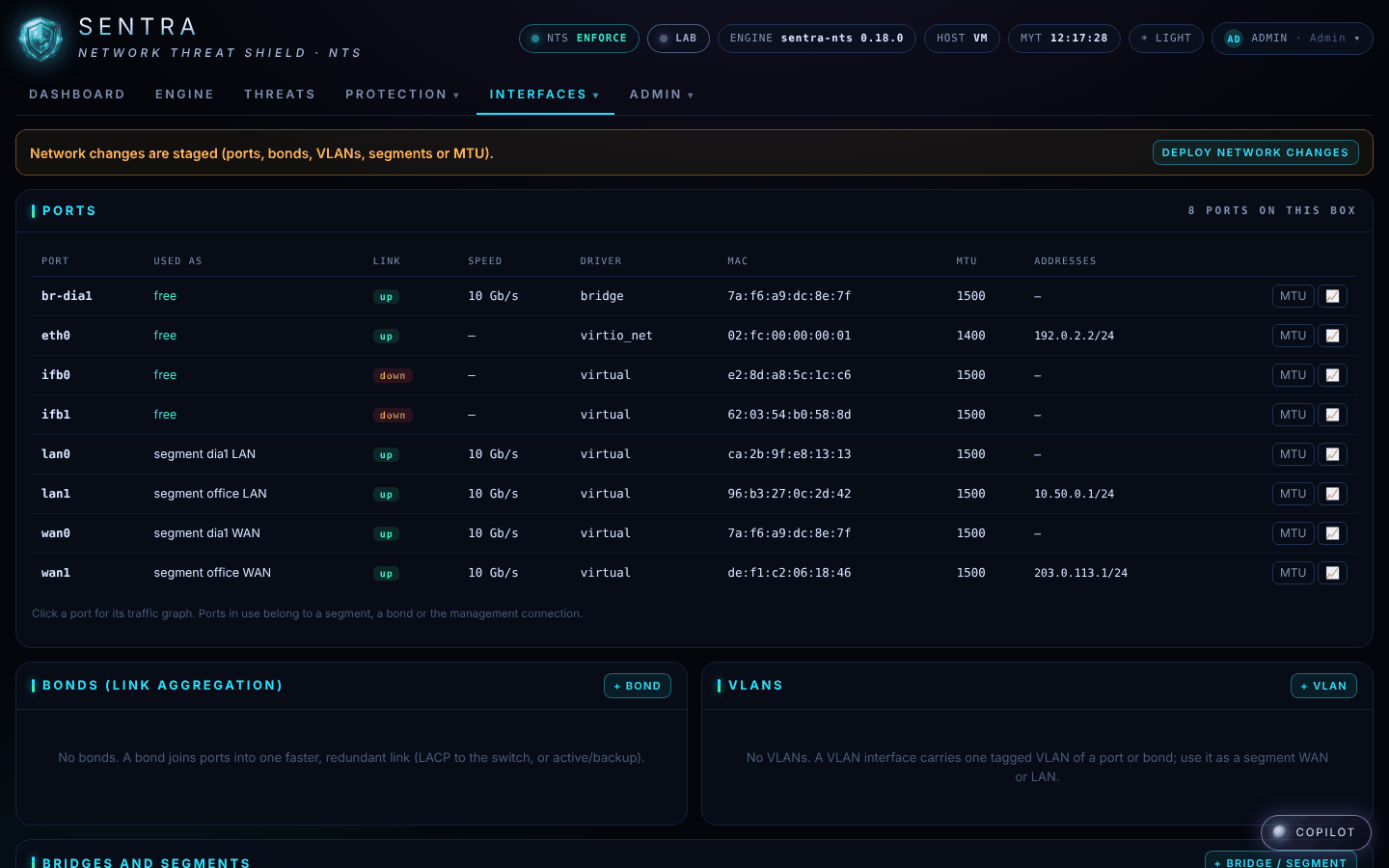
On the console's Network → Interfaces page every port shows its link and speed, and what it is used as.

Network → Interfaces on a running unit: each port's role, link and speed.

The dashboard's Traffic on every port shows traffic moving through WAN and LAN once cabled.

Fail-open and bypass

What keeps the line up when software or hardware fails — software fail-open, hardware bypass pairs, the watchdog, and a manual bypass plan.

An inline unit carries all of a customer's traffic. SENTRA designs for failure at three levels.

1. Software fail-open (every unit)#

If this stops… …traffic
The SENTRA services (AI daemon, console, inspector) Keeps flowing — the firewall rules stay loaded in the kernel
The DNS/HTTPS name filter Flows unfiltered (the packet queue fails open)
The intrusion-prevention engine Flows uninspected (the queue fails open)
A bridge segment's software The kernel bridge keeps forwarding
A bad configuration change Rolls back by itself after 60 seconds

At boot, the unit loads its last confirmed ruleset before the network comes up.

2. Hardware bypass (premium SME units)#

A bypass pair is a WAN and LAN port wired through relays. While the unit is healthy, traffic goes through NTS. If the unit loses power or stops sending its heartbeat, the relays close and connect WAN straight to LAN — the line stays up, unprotected, until the unit is back.

NTS drives the bypass card on bare metal through two commands in its configuration:

"bypass": {"heartbeat_cmd": "<command that tells the card we are alive>",
           "fail_cmd": "<command that lets the card bypass>"}

The NTS daemon runs heartbeat_cmd while the ruleset is loaded and healthy, and fail_cmd when it is not. The commands come from the bypass card's vendor tools and are set by SENTRA when the unit is qualified.

3. Watchdog and power#

Units without hardware bypass#

Home and standard SME units have no bypass relays. Plan a manual bypass:

  1. Keep a spare patch cable with the unit.
  2. If the unit fails and the line must come back at once: connect the cable from the modem/ONT (or carrier hand-off) directly to the router/firewall, skipping the SENTRA unit. - Bridge layout: works immediately — nothing else changes. - Routed layout: your router must be set up to act as the gateway first; plan this with your provider.
  3. Tell your provider; the unit is replaced or repaired, then re-inserted.
Tip

For homes, print this on the quick-start card: "If the SENTRA light is red or off and the internet is down, plug the modem straight into your router and call us."

Power and environment

Power, ventilation, placement and the Malaysian compliance notes for SENTRA NTS appliances.

Power#

Placement and ventilation#

Malaysian compliance notes#

Note

These notes describe what applies to equipment of this kind in Malaysia. They are not a statement that any model is certified — certification is confirmed per qualified model.

Topic Note
Power adapters Electrical equipment such as power adapters needs the SIRIM ST label (Certificate of Approval under the Electrical Supply Act 1990). SENTRA sources adapters that carry it
Wireless The MCMC mark is mandatory for wireless products. SENTRA appliances are built wired-only (no Wi-Fi or cellular module)
Wired telecom equipment Fixed-line telecommunications products may require type approval. Whether a wired firewall appliance falls under it is being confirmed with SIRIM QAS / a certification body
EMC and safety Required where applicable; confirmed per model

Environment#

From unboxing to protecting

The steps from a sealed box to a licensed, protecting SENTRA NTS appliance.

1. Unbox and check#

2. Cable it#

Follow Cabling an inline unit: WAN to the modem/ONT or carrier, LAN to your router or switch, MGMT to the admin network (if used). Then connect power.

3. First boot#

The unit starts Ubuntu Server and SENTRA NTS, loads its configuration and starts protecting. Units ship in Monitor mode unless your provider set otherwise: they count what they would stop, so you can check everything is right before protection is fully switched on.

4. Connect to SENTRA GUARD (provider-managed units)#

A provider-managed unit connects to its SENTRA GUARD over the management link and appears online in the GUARD within minutes. The GUARD then:

Nothing else is needed on site.

5. Stand-alone units#

  1. Open the console at https://<management address>:8443.
  2. Sign in with the account your provider gave you, or — on a brand-new unit — the one-time setup code and a new password.
  3. Turn on two-factor sign-in (your name → Two-factor sign-in).
  4. Add the licence key under Admin → Licence & Updates → Licence (the unit runs for 30 days without one; protection never stops).
  5. Choose a policy under Protection → Policies — Shariah Compliant, Child Safe or Child Safe · strict — for everyone or for chosen devices.
  6. When the dashboard looks right, switch to Enforce.

6. Check it's working#

The full software reference is the SENTRA NTS — Administrator Manual; end users can read the SENTRA NTS — User Guide.

Sizing, care and support

Choosing between Home, SME and premium SME units, looking after a unit, and getting support.

Choosing a tier#

Question Points to
Home or small shop, one fibre line Home
Office with its own firewall, or needs VPN / two lines SME
Line above 2.5 Gb/s, or a 10 Gb/s fibre hand-off SME (SFP+)
Single line where any downtime is unacceptable Premium SME with hardware bypass
Heavy inspection (IPS on all traffic) for many users Ask SENTRA: the qualified line rate per tier is published after benchmarking
Two units for no single point of failure Two identical units as an HA pair (routed or bridge), with a direct sync cable

Looking after a unit#

Getting support#

  1. Your provider — the company that installed the unit — is the first contact. They can see the unit in SENTRA GUARD.
  2. Units bought directly from SENTRA: write to demo@sentra-ai.com with the Installation ID, what happened and when.

Warranty and replacement terms are set in your service agreement with your provider or SENTRA.